
Appearance
Model Context Protocol (MCP)
The WebAccess/DMP MCP server lets AI assistants that support the Model Context Protocol (MCP), such as Claude Code, control WebAccess/DMP directly from the terminal. Once connected, the assistant can query and manage your data — for example, listing the companies you have access to or reading a device's details — using plain-language requests.
The server is available at https://mcp.wadmp.com/. Authentication is handled by the assistant during connection (OAuth sign-in), so no token or secret is stored in the configuration file.
Billing plan limitation
The Claude Code desktop app does not support custom MCP servers on a Teams billing plan. Use the terminal version of Claude Code (installed below) to connect to the MCP server — it supports custom MCP servers regardless of billing plan.
Connecting
In the Claude Code desktop app, ask Claude Code to create a
.mcp.jsonfile formcp.wadmp.com. The generated file looks like this:json{ "mcpServers": { "wadmp": { "type": "http", "url": "https://mcp.wadmp.com/" } } }Close the Claude Code desktop app.
Install the terminal version of Claude Code:
bashnpm install -g @anthropic-ai/claude-codeOpen a terminal, change to the folder that contains the
.mcp.jsonfile, and start the terminal client:bashclaudeComplete the setup and pair the terminal client with your account. This requires activation via email.
Run the
/mcpcommand to list the MCP server defined in.mcp.json, and connect to it. When the connection succeeds, the terminal reports that authentication was successful and the server is connected.Reopen the Claude Code desktop app. Leave the terminal client running.
Claude Code can now use the MCP server to interact with WebAccess/DMP.
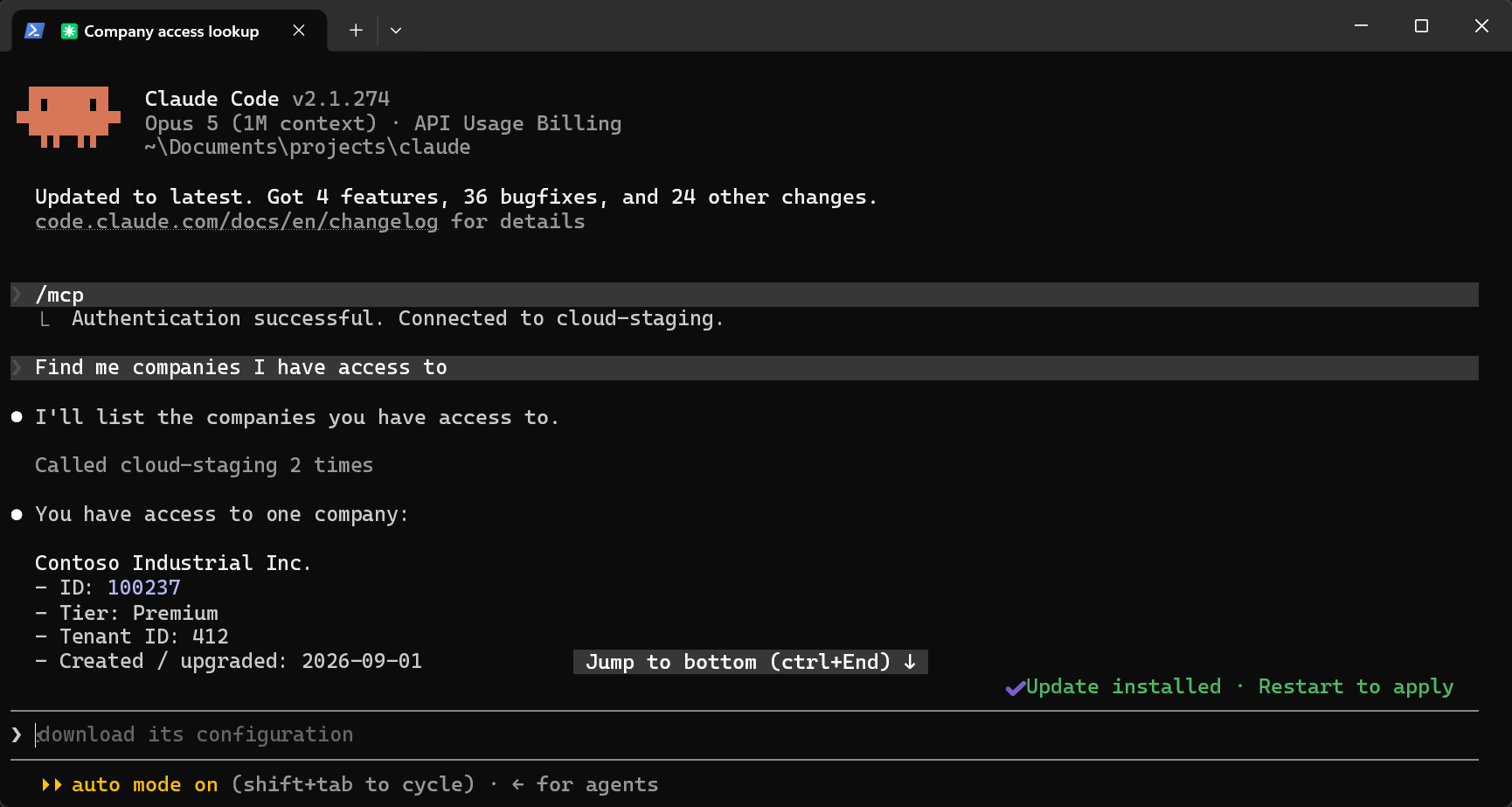
Keep the terminal client running
The desktop app relies on the connection established by the terminal client. Reopening the desktop app is fine, but keep the terminal client running so the MCP server stays available.